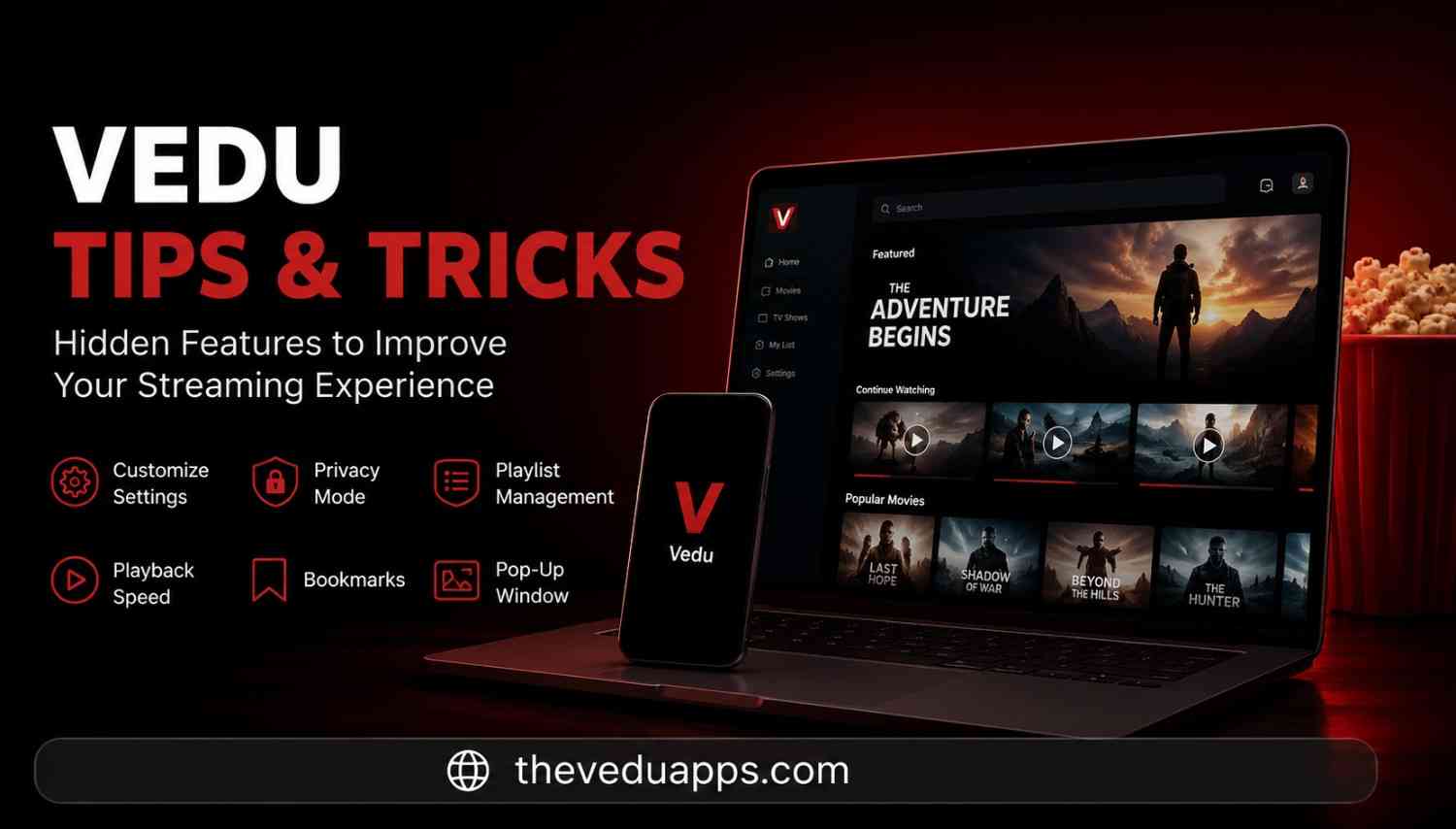
Vedu Tips and Tricks | Hidden Features to Improve Streaming Experience
I still remember the first week I installed Vedu on my phone. I opened it, hit play on a movie, and that was it no settings, no exploring, just the basic default experience. It wasn’t until a friend pointed out the subtitle and privacy options one night that I realized how much I was missing. Since then I’ve spent months actually testing every setting, every toggle, every hidden button inside the app, and this guide is the result of that trial and error.
If you’re someone who just installed the app or someone who’s been using it for a year without touching a single setting, this guide will change how you stream. No fluff, no filler just what actually works, tested on my own device.
What Are Vedu Tips and Tricks?
Quick overview
At its core, this collection of tips is the practical adjustments, hidden shortcuts, and lesser-known features inside the Vedu app that most people never bother to look for. These include subtitle customization, privacy controls, playlist organization, playback speed, bookmarking, and performance tweaks that reduce buffering. None of these require any technical skill they’re all built into the app, just tucked away in menus people rarely open.
Who should use these tips?
Honestly, anyone using the Vedu app for regular streaming will benefit. If you binge-watch dramas on weekends, use the app to catch up on sports highlights, or stream cooking and tutorial content during the day, these tips apply directly to you. Users on older or budget Android phones especially need the performance-related tricks, since that’s where lag and crashes usually hit hardest.
Why most users never discover these hidden features?
Vedu doesn’t push a tutorial at you when you open it for the first time. There’s no onboarding screen walking you through subtitle settings or privacy mode. You either stumble onto these features by accidentally tapping the wrong icon, or you never find them at all. I only discovered playlist shuffle because I was bored one evening and started tapping every icon on the screen out of curiosity.
Best Vedu Settings Before You Start
Before jumping into individual features, it helps to get your baseline settings right. This single step fixes more streaming complaints than any other trick on this list.
Optimize video quality based on your internet speed
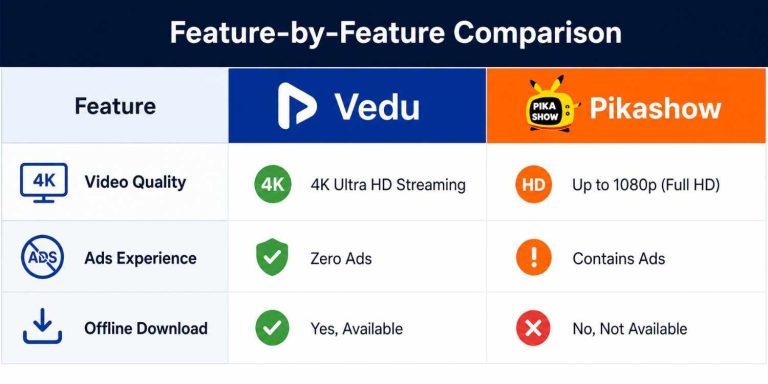
Set your video quality to match your actual internet connection instead of leaving it on auto. For HD playback you generally need around 5 Mbps, Full HD needs closer to 15 Mbps, and 4K content needs 25 Mbps or more of stable bandwidth. I made the mistake of forcing Ultra HD on a shared home connection for weeks, and the constant buffering was completely avoidable once I dropped it to Full HD.
Choose the right playback and download settings
Inside the settings menu, check whether the app is set to stream only or stream-and-cache. If you frequently rewatch the same shows, enabling partial caching saves data and reduces load time the second time around. For mobile data users, I’d recommend capping quality at HD to avoid burning through your data plan in a single sitting.
Adjust app preferences for smoother performance
Turn off auto-play previews if your device feels sluggish, since this feature quietly uses background processing to load video snippets while you scroll. On a mid-range phone this alone noticeably speeds up how the app feels when browsing.
Customize Subtitles for a Better Viewing Experience
Change subtitle size, font, and color
Open any video, tap the settings icon during playback, and you’ll find subtitle controls hiding there. You can change the font size, text color, and background shade. I switched to bold white text on a dark, semi-transparent background, and it made watching content at night, with the brightness turned down, so much easier on the eyes.
Improve subtitle readability on different devices
If you’re watching on a small phone screen, bump the subtitle size up a notch. If you’re casting to a TV from across the room, a slightly smaller size actually reads better since text can look oddly large on bigger screens. Vedu lets you adjust this per session, so you’re never locked into one setting.
Protect Your Activity with Privacy Mode

How Privacy Mode works?
Turning on Privacy Mode stops the app from recording your watch history. Nothing you watch afterward gets logged, and the app also stops using your past viewing habits to suggest new content. It’s one of the more underrated features for anyone who shares a device with family or friends.
When you should enable it?
I switch this on any time someone else might pick up my phone a sibling, a friend borrowing it to check something, or when I’m using a shared tablet at home. It’s also worth enabling permanently if you simply don’t want your streaming habits mixed with anyone else’s on the same device.
Organize Your Watchlist with Smart Playlist Management
Create and edit playlists
Tap and hold on any movie or episode inside the library, and you’ll get the option to add it to a playlist. I keep separate ones labeled “Watch Tonight,” “Half Finished,” and “Weekend Binge” small habit, but it saves a surprising amount of scrolling every time I open the app.
Group movies and shows for easy access
Instead of one long list, split content by category comedies in one playlist, ongoing dramas in another, documentaries somewhere else. Vedu supports multiple playlists running side by side, so there’s no reason to keep everything jumbled together.
Use Playlist Shuffle for continuous playback
Once your playlists are set up, shuffle mode picks the next video randomly instead of repeating the same one. It’s genuinely useful for background content while cooking or working, or for music video playlists where episode order doesn’t matter at all.
Find Movies Faster Using Search and Filters
Search content with keywords
The search bar accepts more than just exact titles you can search by genre, actor names, or general themes and still get accurate results. I’ve typed in vague terms like “revenge thriller” before and found exactly what I was looking for within seconds.
Filter by genre, language, release year, and quality
After searching, apply filters to narrow things down further. This is especially handy for regional content filtering by language lets you pull up Hindi, Urdu, Punjabi, or Bengali titles specifically instead of scrolling through everything. You can also filter by quality so only HD or 4K results show up, skipping anything that would look blurry on a bigger screen.
Improve Watching Experience with Playback Controls
Adjust playback speed
Tap the screen during playback to bring up the speed control, usually shown as a small “1x” icon. You can slow content down to 0.75x or speed it up to 2x. I watch tutorial and documentary content at 1.5x and switch back to normal speed for movies and dramas where pacing actually matters.
Use thumbnail preview to skip scenes
Dragging the seek bar shows small preview thumbnails of what’s at that exact timestamp. Instead of guessing where a scene is, you can see it before you tap, which saves a lot of back-and-forth scrubbing on longer content.
Lock screen rotation while watching
Tap the rotation icon in the player controls to lock the screen to either portrait or landscape. I always lock to landscape for movies nothing worse than the screen flipping sideways right as a scene gets interesting because you shifted position on the bed.
Use Pop-Up Window (Picture-in-Picture) for multitasking
Activating pop-up mode shrinks your video into a small floating window that stays visible while you use other apps. I use this constantly during cricket matches keeping the stream running in a corner while replying to messages or checking scores elsewhere.
Bookmark Your Favorite Movies and Continue Anytime
Save watching progress
Tap the bookmark icon while a video is playing, and it saves your exact position, not just the title. Before I found this feature, I was literally taking screenshots to remember where I’d stopped, which now feels a little ridiculous looking back.
Access bookmarks across sessions
All bookmarked content sits in one dedicated section inside the app. Open it, tap the video, and you’re back exactly where you left off no scrubbing through the timeline trying to remember the scene.
Vedu Tips and Tricks to Reduce Buffering and Lag
Improve streaming speed
If buffering is a recurring issue, connect to a 5GHz Wi-Fi band instead of 2.4GHz when your router supports it it’s noticeably faster and less crowded with other devices. This one change fixed most of my buffering complaints within a single evening.
Best internet settings
Match your video quality to your actual connection speed rather than relying on auto mode, which sometimes overshoots what your network can realistically handle. Manually setting quality to HD or Full HD, depending on your speed, avoids the mid-video stalling that auto mode occasionally causes.
Reduce crashes on low-end Android devices
On phones with 3GB or 4GB of RAM, close other heavy apps before streaming and disable background animations in your phone’s developer settings if you have access to them. This frees up memory for Vedu to run without hiccups.
Clear cache without losing saved data
Go to your phone’s app settings, find Vedu, and clear the cache every couple of weeks. This removes old temporary files slowing the app down, and importantly, it does not touch your playlists, bookmarks, or saved preferences.
Common Mistakes That Slow Down the Vedu App
Using incorrect playback settings
Leaving quality permanently set to Ultra HD regardless of your connection is the single biggest mistake I see people make. It sounds like the better choice, but on an average connection it just creates buffering that ruins the experience.
Ignoring app updates
Skipping updates means missing bug fixes and performance improvements that Vedu regularly rolls out. Always update through the official source to avoid installation issues.
Keeping too much cached data
Letting cache pile up for months bloats the app until it starts feeling sluggish, which people often mistake for the app being “broken” when it’s really just overloaded with old files.
Privacy mistakes many users make
Not enabling Privacy Mode on a shared device means your full watch history stays visible to anyone who opens the app after you. It takes one tap in settings to fix, yet most users never bother.
Hidden Vedu Features Most Users Never Try
Small features that save time
Beyond the major settings, small touches like adjustable subtitle timing and quick-access recently watched lists exist inside the app but rarely get used simply because people don’t go looking for them.
Daily shortcuts for faster navigation
Long-pressing on content from the home screen often brings up quick actions add to playlist, bookmark, or start playback immediately skipping several taps you’d otherwise need.
Viewing tricks for better streaming
Combining playback speed with thumbnail preview works especially well for reviewing long lecture or tutorial content, letting you scan and speed through sections without missing key parts.
FAQ‘s
How can I make Vedu stream faster?
Lower your video quality to match your internet speed, clear the app cache regularly, and connect to a 5GHz Wi-Fi network where possible. These three adjustments resolve the majority of buffering complaints.
Is Privacy Mode safe?
Yes. Enabling Privacy Mode simply stops the app from storing your watch history locally, so it leaves no trace of what you’ve streamed once activated.
Can I customize subtitles?
Yes, subtitle font size, color, and background style can all be adjusted directly from the player controls while a video is playing, and changes apply instantly.
How do bookmarks work?
Tapping the bookmark icon saves your exact position in a video, including the timestamp, not just the title, so you can resume from precisely where you stopped.
Which Vedu feature is most useful?
Based on daily use, playlist management paired with bookmarks makes the biggest practical difference, since together they cut down on both searching for content and losing your place.
Do these Vedu Tips and Tricks work on every Android device?
Yes, all the features covered here are built into the app itself, so they work the same way whether you’re on a budget phone or a higher-end Android device. Performance-related tips matter more on lower-spec phones, but the settings themselves are universal.
Conclusion
Every one of these Vedu Tips and Tricks came from actually using the app daily and running into the same small frustrations everyone else does laggy playback, messy playlists, forgotten timestamps. Once you set up subtitle customization, turn on Privacy Mode, organize a playlist or two, and fix your streaming quality settings, the entire experience feels like a different app. Start with just two or three of these changes today, and you’ll notice the difference the very next time you open Vedu App Login Guide.